

Quick Answer
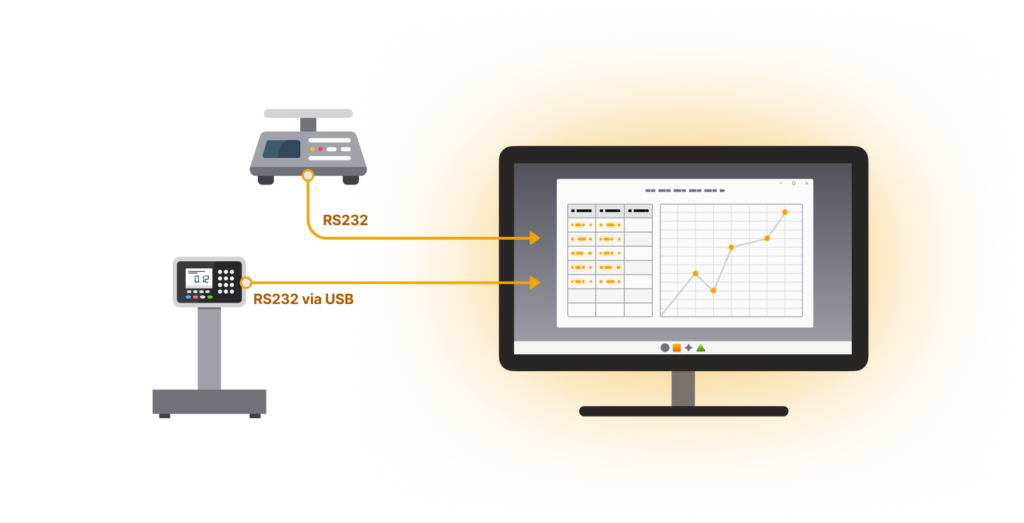
Connecting an RS232 scale or balance to Excel requires three things: a serial cable, a COM port, and software that reads the instrument’s output and routes it into your spreadsheet. TALtech’s WinWedge software handles the translation automatically — no programming required — and most setups are running in under 15 minutes.
What You Need Before You Start
Before launching any software, gather these items:
- An RS232-capable scale or balance (check the back panel for a DB-9 or DB-25 serial port). Supported brands include:
- Mettler Toledo
- Sartorius
- Ohaus
- A&D Weighing
- Rice Lake weighing
- Fairbanks Scales
- Shimadzu
- Cardinal Scale
- Adam Equipment
- Kern & Sohn
- Precisa
- Radwag
- U.S. Solid
- and many more. Note: For USB output postal/package scales using the HID interface use HID-ScaleWedge software
- A serial cable (straight-through or null-modem, depending on your instrument — check the manual or ask AI), or a USB-to-serial adapter cable (*see below).
- A PC running Windows with an available COM port
- TALtech’s WinWedge Standard or Pro (download a free trial at TALtech.com)
*Most modern PCs lack a built-in serial port. A quality USB-to-serial adapter cables (FTDI or newer Prolific chipset recommended) solves this and come with a downloadable driver to create a Virtual COM port that WinWedge will recognize. USB Serial adapter cables are available on Amazon and elsewhere.
Step 1: Connect the Hardware
Plug the serial (or USB adapter) cable between your scale’s RS232 port and your PC’s COM or USB port. Power on the scale and confirm it is outputting data — most balances transmit a reading automatically when the display stabilizes, or when you press a “Print” or “Transmit” button.
Open Windows Device Manager and note which COM port number has been assigned. You will enter this in WinWedge.
Step 2: Configure WinWedge
Open WinWedge and click Port>Settings. Set the following to match your instrument’s manual:
- COM port: the number you noted in Device Manager
- Baud rate: commonly 1200, 2400, 9600, or 19200
- Data bits: usually 7 or 8
- Parity: None, Even, or Odd
- Stop bits: usually 1
If you don’t have the manual, 9600-8-N-1 (9600 baud, 8 data bits, no parity, 1 stop bit) works for a majority of modern balances. WinWedge’s built-in terminal Port>Analyze window lets you see raw incoming data to confirm the connection is live and settings are correct before you configure to data parsing.
Step 3: Define Your Data Parsing
Most scales output a string like `GS 0.125 kg` or `+00.250 lb`. WinWedge’s input data filters lets you strip the unit text and extract just the numeric value if desired. Use the String Filter to remove unwanted characters, and the Field Splitter to route multiple values (such as gross/net/tare from a counting scale) into separate Excel columns.
Step 4: Aim WinWedge at Excel
WinWedge in Send Keystrokes Mode* (select in Mode menu).
Save your WinWedge configuration for your scale or balance and ACTIVATE WinWedge. Then open your Excel spreadsheet and click the cell where you want the first reading to land. Press Print on your scale — the weight value appears in the active Excel cell, followed by a Tab, Enter or other keystroke (as selected by you in the “Define” menu) to advance to the next cell automatically.
That is all there is to it. The entire process takes 10–15 minutes the first time. Once the configuration is saved, it can be activated automatically each time you run WinWedge.
*Note WinWedge can also automate data entry into Excel and other Windows applications using Dynamic Data Exchange. Please see WinWedge Support page for technical details.
Common Problems and Quick Fixes
TALtech provides a complete Quick Start Guide to help with set up and common questions regarding both WinWedge and serial communications with your scale or balance.
TALtech also provides free support for the WinWedge software and Trial version by phone or email during office hours (EST). However here are some common questions and answers:
No data in the “Analyze” terminal window: Check cable type (try swapping straight-through for null-modem), make sure your device is on and transmitting data (you may need to press a “Print” key on the device or issue a command to it from WinWedge).
Data appears garbled: Baud rate or parity mismatch. Try each baud rate option systematically — 9600 is the most common starting point.
COM port not listed: The USB-to-serial adapter driver may not be installed. Check Device Manager>Ports COM and LPT to see what COM ports are available.
Frequently Asked Questions
*Q: Does WinWedge work with any brand of scale?*
WinWedge works with any instrument that outputs data over RS232 in ASCII text format. This includes Mettler-Toledo, Ohaus, Sartorius, A&D, Fairbanks, Rice Lake, and hundreds of other brands. If your instrument has a serial port WinWedge can read it.
*Q: What if my scale only has a USB port, not RS232?*
If the scale uses USB-HID protocol (common in postage and parcel scales), TALtech’s HID-ScaleWedge is the correct product. It will instantly recognize your US-HID parcel scale.
*Q: Can WinWedge send data to applications other than Excel?*
Yes. WinWedge routes data into any Windows application that accepts keyboard (or Dynamic Data Exchange) input — Access, Word, SAP, custom databases, web forms, and proprietary LIMS systems and more.
*Q: Can WinWedge Collect Data from Scales connected via Ethernet
Yes. WinWedge Pro version can collect data from scales and devices connected via Ethernet (or Internet) as well as from RS232 and USB.
more.*Q: Is there a free trial available?*
Yes. A fully functional free trial of WinWedge Standard and Pro is available at TALtech.com. The trial is fully functional and works for 30 days. It can be activated for a maximum of 20 minutes at a time.
Published by TALtech — makers of WinWedge, TCP-Com, HID-ScaleWedge and BC-Wedge data collection software. Visit TALtech.com to learn more or download a free trial.
Easily Collect Data from Scales, Balances, Gauges, Meters, Analyzers and Other RS232 and USB Serial Port Connected Devices with WinWedge software. Best Serial Port Communications Software.
WinWedge integrates device data directly into Excel, databases, any other Windows application, any web page form or any text file.
Go to the Scale to Excel Software page
Watch Scale to Excel videos
Key Features of WinWedge – Scale to Excel Software
WinWedge Pro stands out as the best serial port communications software, providing unparalleled flexibility in parsing, filtering, and formatting serial RS232-USB device data. This software seamlessly feeds device readings, date, time, and other crucial data directly into Excel, any Windows applications, web forms, or data files.
Take Control of Scale Data into Excel with WinWedge
WinWedge can also transmit prompts or commands from your PC to control scales, balances, meters, sensors, RS232 lab equipment, measuring instruments or any serial port connected device making it ideal for on-demand device data collection.
Data Seamlessly into Excel
WinWedge not only communicates with your serial port devices it can input the read-time device data into Excel or any Windows application. Visualize your data in real-time or generate insightful reports using Excel’s graphing and charting tools. WinWedge can intelligently separate your serial port device data into distinct columns and remove unit measurements from each reading as needed.
WinWedge can also collect data from any serial port device into any other Windows application, web form or data file.
Please contact TALtech at 800-722-6004 or sales@taltech.com for assistance with all your Serial Port Communication Software questions.