
Quick Answer
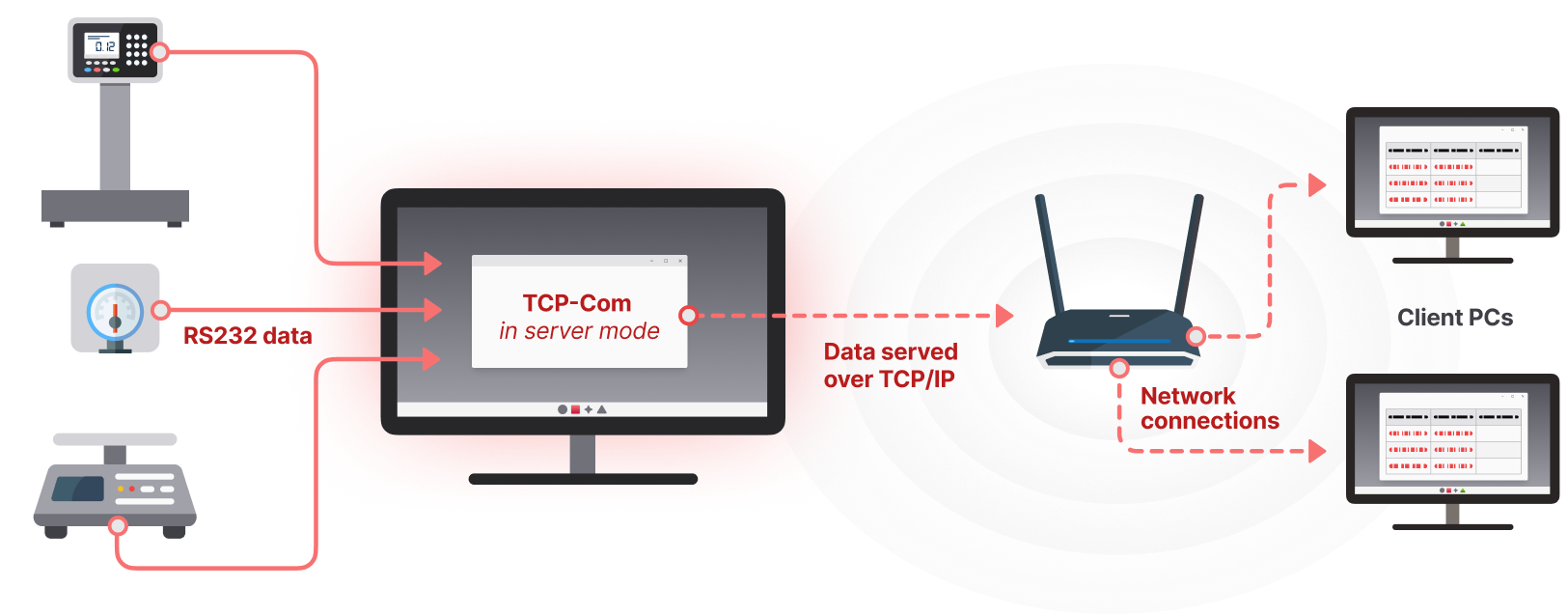
TALtech’s TCP-Com turns any Windows PC into a multi-port Serial Device Server. Connect your RS232 or USB instruments to the PC’s COM ports, install TCP-Com, and the device data becomes available on your network at the PC’s IP address — ready to be read by any PC on the network. No additional hardware device server is required.
What This Solves
You have RS232 or USB-connected devices — card readers, scales, balances, sensors, gauges, meters, medical instruments, analyzers, or any serial device — connected to a PC. You want other computers on your network to be able to access that device’s data, or you want to centralize collection of data from multiple instruments into one network-accessible location.
The classic answer is to buy a hardware Serial Device Server (Lantronix, Moxa, Digi). But if you already have a Windows PC near the instruments, you don’t need additional hardware. TCP-Com running on that PC does exactly the same job in software — turning the PC itself into a Multi-Port Serial Device Server.
How TCP-Com’s Serial Device Server Mode Works
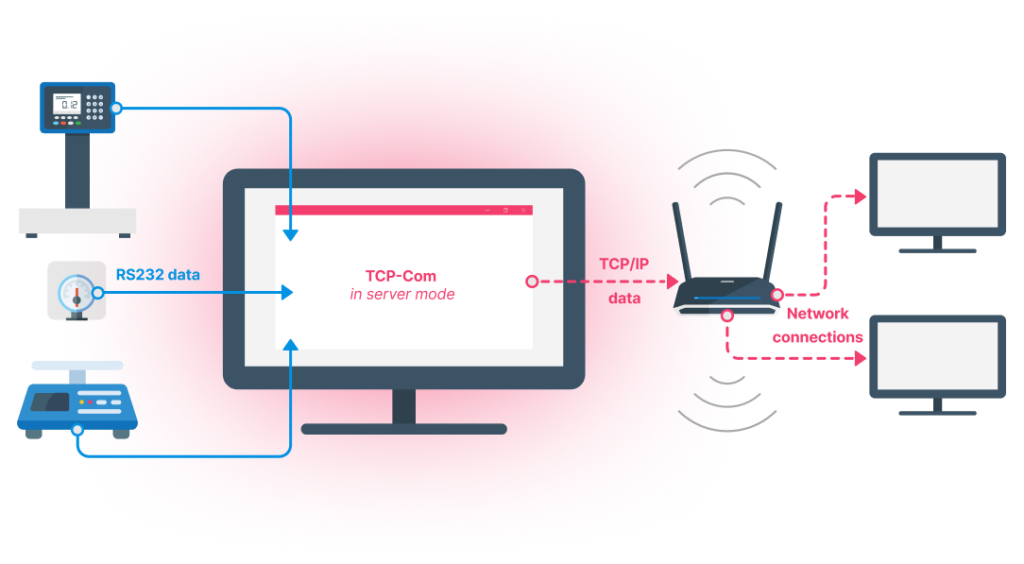
In this mode, the data flow is Serial → Network:
- RS232 or USB devices are physically connected to the Windows PC’s COM ports.
- USB devices use standard USB-to-serial adapter drivers (such as Prolific or FTDI) to appear as virtual COM ports in Windows Device Manager.
- TCP-Com is configured to read from each COM port (or Virtual COM port) and publish that data on the network.
- Each COM port is mapped to a unique TCP port number on the PC’s IP address. For example: COM1 → 192.168.1.100:2101, COM2 → 192.168.1.100:2102, and COM3 → 192.168.1.100:2103 etc.
- Any computer on the network can connect to those IP/port combinations and receive the device data in real time.
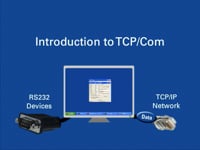
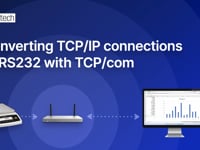
The PC running TCP-Com IS the Serial Device Server. The COM and USB ports it already has are the device server ports. TCP-Com handles the protocol translation between RS232 serial communication and TCP/IP network traffic.
What You Need
- A Windows PC with available RS232 COM ports (built-in or via expansion cards) or USB ports with USB-to-serial adapters (FTDI or Prolific)
- Serial cables (RS232 cable to connect to an RS232 port OR RS232-to-USB adaptor cables to connect to a USB port – see below) to connect each instrument to the PC.
- USB-to-serial adapters (FTDI chipset recommended) if connecting via USB — these come with virtual COM port drivers that make the USB port appear as a COM port to Windows
- With multiple RS232 devices you will need to purchase either additional RS232 ports or a multi-port RS232-to-USB cable. (TALtech technical support can assist with questions).
- TCP-Com installed on the PC
- Network connectivity to the PC
You do NOT need any external Serial Device Server hardware. TCP-Com on your existing PC replaces that hardware entirely.
Step-by-Step Setup
- Connect your RS232 instruments directly to the PC’s COM ports. For USB devices, connect them with the USB-to-serial adapter and confirm in Device Manager that a COM port number has been assigned.
- Install TCP-Com on the PC and launch it (there is a free fully functional 30-day trial version).
- In TCP-Com, create a connection for each device: select the COM port number, set the serial communication parameters (baud rate, data bits, parity, stop bits) to match the device, and assign a TCP port number to publish the data on the network.
- Repeat for each connected device, using a different TCP port number for each.
- On any client PC that needs to access the device data, configure software to connect to the host PC’s IP address and the assigned TCP port number for the desired instrument.
Total setup time for a typical multi-device configuration is 15 to 45 minutes. If you have questions TALtech provides set-up instructions and short step-by-step videos and free support by phone or email – even for the free trial version.
Why Use TCP-Com Instead of a Hardware Device Server?
Both approaches accomplish the same goal — making serial device data available on a network. The right choice depends on your situation.
Choose TCP-Com when:
- You already have a Windows PC near the instruments
- You need to share data from multiple devices (up to 256 simultaneous COM ports)
- You want to avoid additional hardware to purchase, configure, and maintain
- You want lower total cost — a single TCP-Com license at $199 versus multiple hardware device servers at $100–$300 each
- You want to also use the PC for other tasks (data logging with WinWedge, running other applications, etc.)
Choose a hardware device server when:
- There is no PC available near the instruments
- You need fully isolated, dedicated, headless operation with no PC dependencies
- Environmental conditions (heat, dust, vibration) are unsuitable for PC operation
For the majority of laboratory, manufacturing, and office environments, TCP-Com on an existing PC is the faster, cheaper, and more flexible choice.
Frequently Asked Questions
Q: Can TCP-Com handle multiple devices simultaneously?
Yes. TCP-Com supports up to 256 simultaneous COM port connections on a single PC, with each port published on its own TCP port number for independent network access.
Q: Do USB devices work with TCP-Com?
TCP-Com reads from COM ports — physical RS232 ports built into the PC, or virtual COM ports that Windows recognizes. USB devices work with TCP-Com only if they appear in Windows Device Manager as a COM port. This happens in two ways:
(1) An RS232 device connected via a USB-to-serial adapter cable. The cable contains an FTDI or Prolific chipset; its driver creates a virtual COM port in Windows. TCP-Com reads from that COM port exactly as it would a built-in RS232 port.
(2) A device with a USB connector that internally uses USB-CDC. These devices (often containing an FTDI chipset built in) present themselves to Windows as a virtual COM port (example COM 7) automatically when plugged in. To Windows — and to TCP-Com — they behave identically to RS232 devices.
USB devices that do not appear as COM ports cannot be accessed by TCP-Com. This includes USB-HID devices (such as Dymo, Fairbanks and Stamps.com postage scales — use HID-ScaleWedge for those), USB mass storage devices, and devices using vendor-specific USB protocols. To check which type your USB device is, plug it in and look in Windows Device Manager: if it appears under Ports (COM & LPT), it will work with TCP-Com; if it appears under Human Interface Devices or anywhere else, it will not.
Q: Can multiple client PCs read from the same device simultaneously through TCP-Com?
TCP-Com can be configured to accept multiple simultaneous client connections in TCP server mode, allowing several PCs to receive the same device data.
Q: How does TCP-Com compare in cost to hardware Serial Device Servers?
TCP-Com is a one-time software license at $199 that supports up to 256 ports. A hardware Serial Device Server typically costs $100–$300 for a single-port or 4-port unit. If you have an existing PC available, TCP-Com is significantly less expensive especially for multi-port deployments.
Q: Does TCP-Com require constant supervision once running?
No. TCP-Com can be installed as a Windows service so it starts automatically with the PC and runs unattended in the background. It also includes error recovery features that automatically reconnect dropped network connections.
Published by TALtech — makers of WinWedge, TCP-Com, and HID-ScaleWedge data collection software.
Visit TALtech.com to learn more, download a free trial, or contact free technical support at 800-722-6004.
Go to the TCP-Com USB to IP Converter information
USB to IP Converter software videos
Download a free trial version USB to IP Converter
TCP-Com Software only $199 for Lifetime License with Free support
Download today
Contact us by phone or email (215-496-0222 or sales@taltech.com) we are happy to help with all your USB to IP Converter questions.
USB to IP Converter, TCP-Com